Applied AI Field Notes 001 — Lego Mosaic Helper
Building Lego is one of the ways I decompress on weekends. This weekend, we finally opened the LEGO Mosaic Maker — a birthday gift for my son.
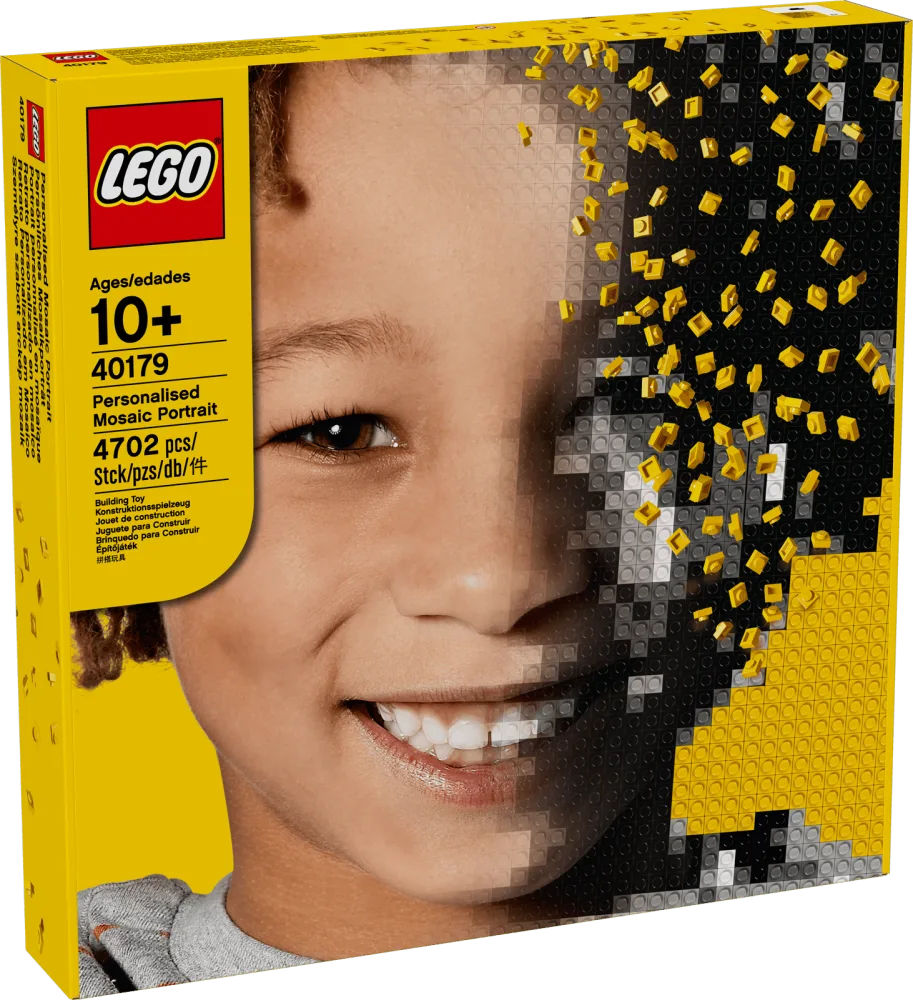
We picked a photo of my kids and started converting it into a 48×48 mosaic. This is what it would look like once it’s done.

Sounds simple: Place pieces one by one.
Until you realize that’s 2,304 placements.
And unlike structured Lego builds, there are no obvious reference points.
It’s easy to drift off by one square — and suddenly your entire row is wrong. This is what it looked like in progress.
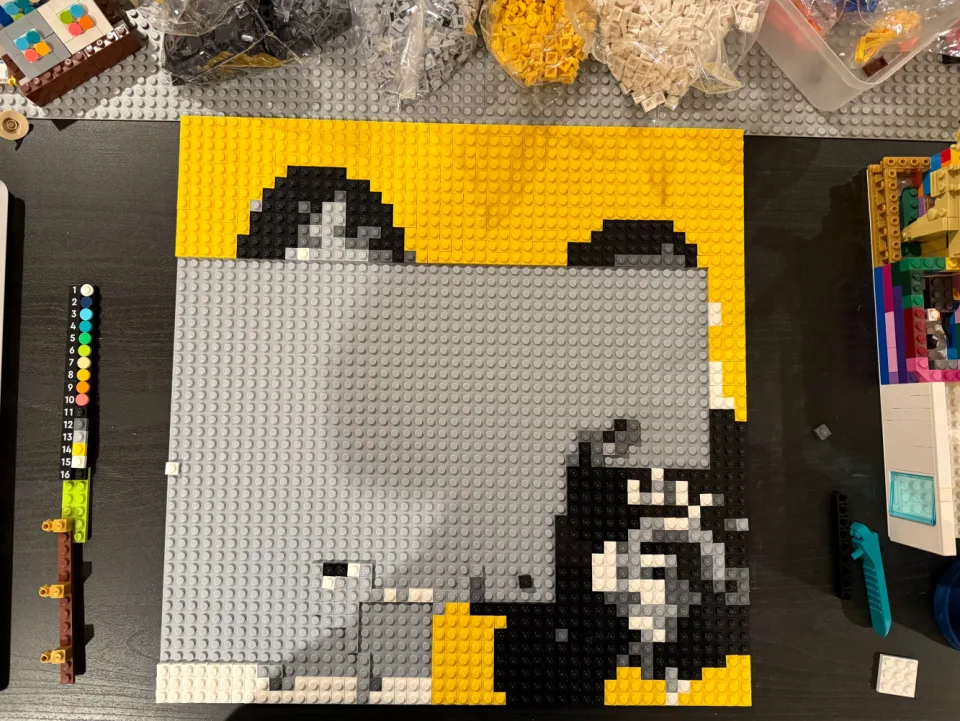
We started by counting pieces manually.
Double checking.
Recounting.
My son even built a small “ruler” tool out of Lego so we could measure distance across the board.
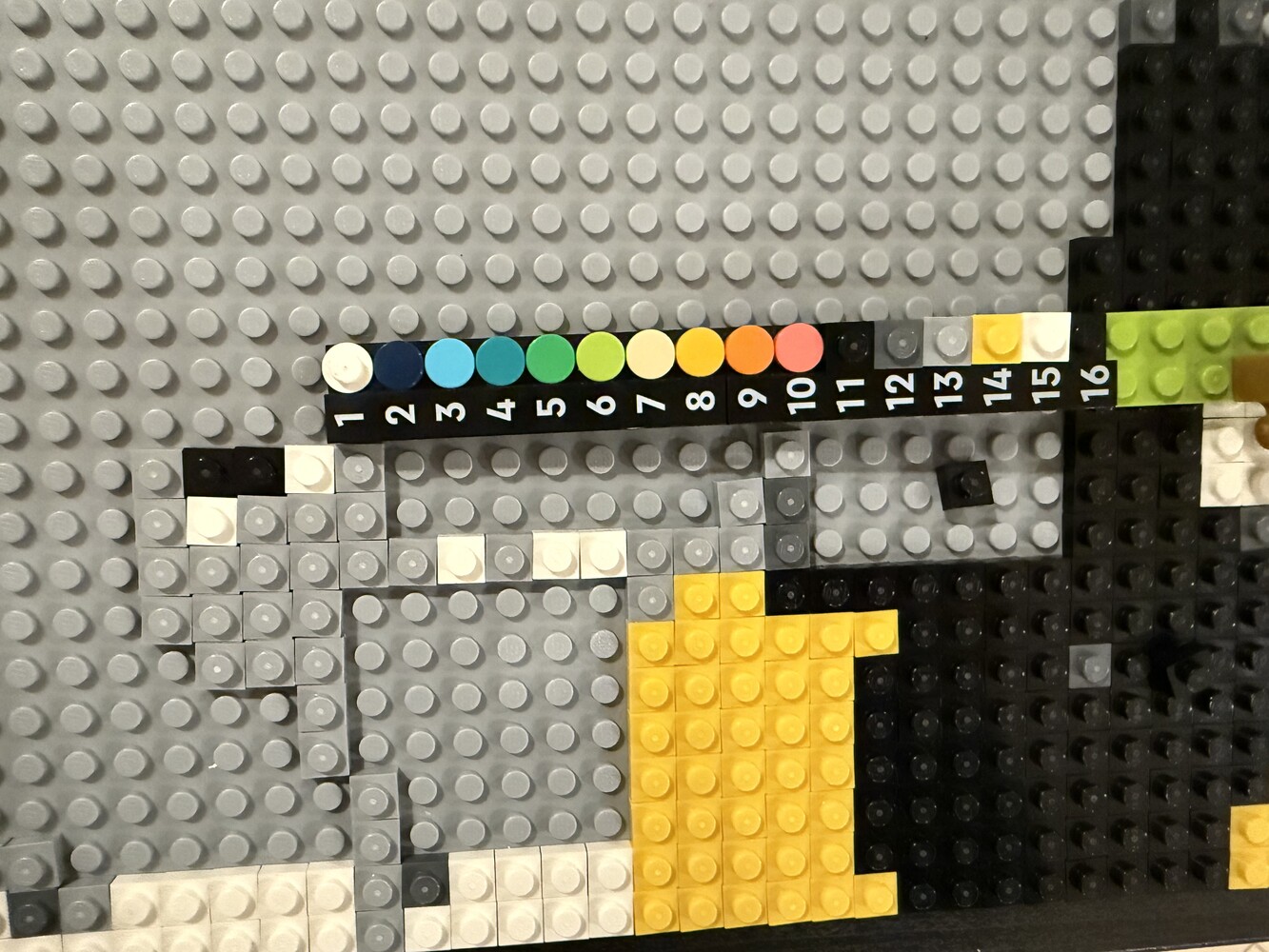
Creative. But inefficient.
I kept thinking: there has to be a better way.
Then I thought I can use AI to build a helper for us.
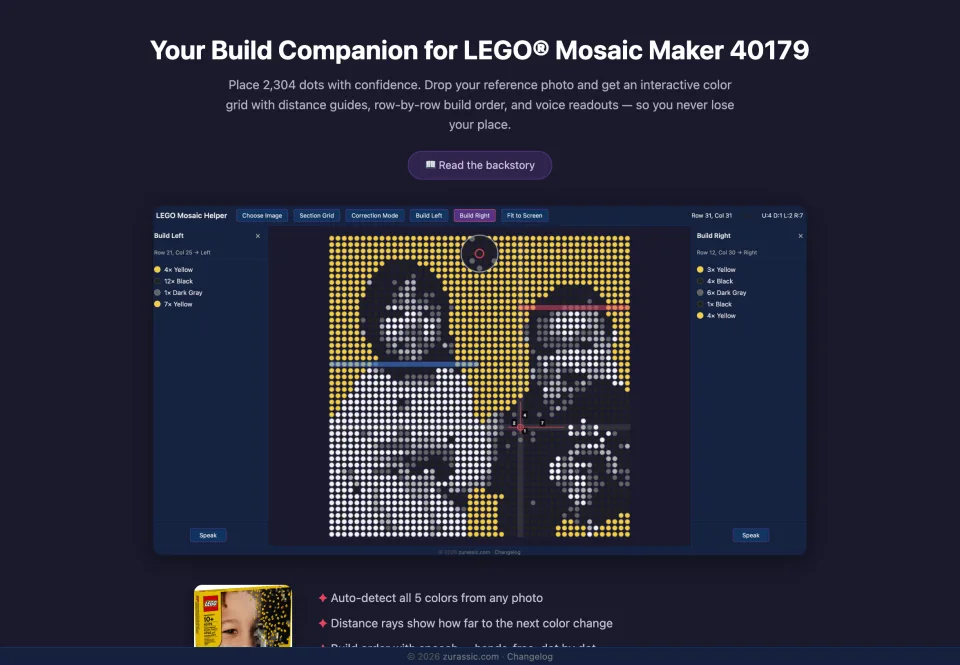
After a few prompts with Claude, I had a simple overlay tool that could:
- Detect grid positions
- Show distances
- Help anchor reference points

It worked — but not perfectly. When I hover on a special dot that it won’t show the distance, which is not what I want; Also I’d like the distance count without the dot I’m in because that’s how I would count the dots when building the Lego.
Again, in the era of AI, we can customize the tool to whatever we want.
So I went ahead and iterated couple of times. Version 2 improved it. Version 3 felt right.
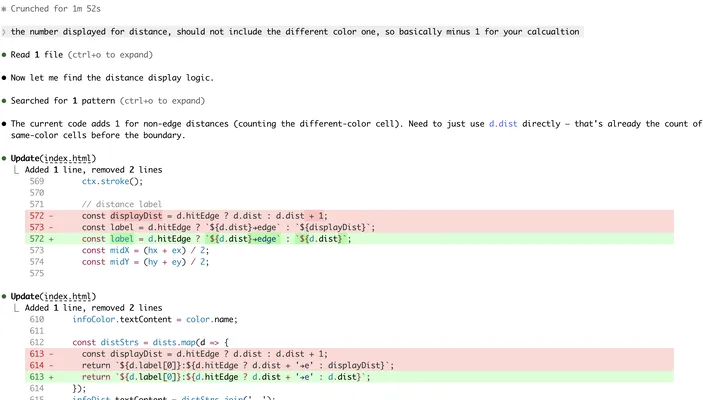
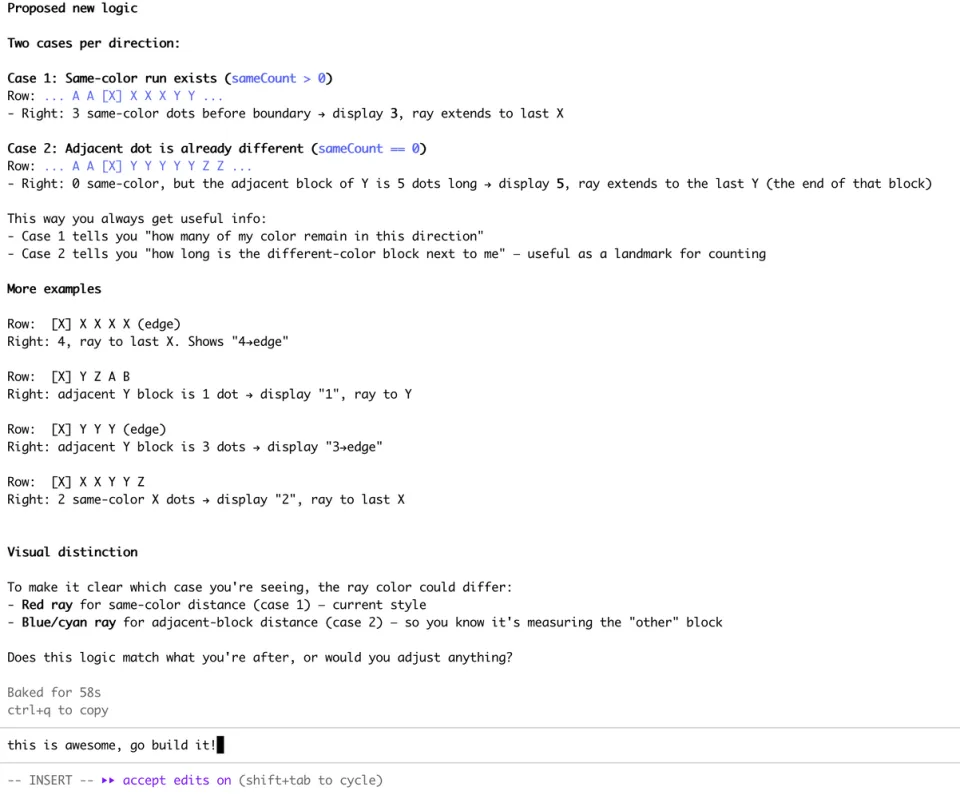
What I liked most wasn’t the tool.
It was the loop:
Observe friction → Co-Design with AI → Test → Refine → Deliver.
AI didn’t replace effort, it accelerated iteration.
Applied AI, for me, isn’t about building flashy demos.
It’s about spotting everyday friction — and asking:
“Can I automate this? Can I build a tool to solve the problem?”
I’m so excited, because I feel that the only real limit is the ideas, the imagination, and the courage to make things better.
This is part of my series of “Applied AI Field Notes” - a collection of articles on how I use AI in personal and professional life.
- Applied AI Field Notes 001 - Lego Mosaic Helper (you’re reading it)
- Applied AI Field Notes 002 - Family Assistant with OpenClaw
- Applied AI Field Notes 003 - My Standing Desk Has an API Now
- Applied AI Field Notes 004 - My Best Customer Is 9 Years Old
More AI field notes to come.